|
Importing Operators |
  
|
Importing Operators
|
Importing Operators |
|
Overview
Importation via a ".csv" file is another way to add operators to a site.
You can import two types of operators: speech operators and non-speech operators. Each type is organized into compatible operator groups (ex: speech operators can only be included in speech operator groups/non-speech operators can only be included in non-speech operator groups). To avoid import issues, do not import speech and non-speech operators at the same time.
The ".csv" file must contain specific record fields (they are referenced in the Operator Import wizard - Import step). Create a file with records that include one of the following field lists:
<LoginID>*;<FirstName>;<Lastname>;<Gender:m/f>;<Shortname>;<ExternalReference>
OR
<LoginID>*;<Firstname>;<Lastname>;<Gender:m/f>;<Shortname>;<ExternalReference>;;<custom1>;<custom2>;<custom3>;<custom4>;<custom5>;<pd1>;<pd2>;<pd3>;<pd4>;<pd5>
 Fields marked with * are mandatory, meaning, they must contain information.
If using the more complete CSV structure, make sure to include the following field and keep it empty:
"...;<ExternalReference>;;<custom1>;<..."
By default, any added operator is attributed an "Enabled" status. However, when the operator quota for the current MCL-Mobility Platform account reaches its limit, the status of the next operator(s) to be added will be"Disabled".
Once operators are added to a site, you can enable/disable their current status in the corresponding "Operator Details" page but these status changes will always consider the operator quota for the account. Ex: Consider an MCL-Mobility Platform account without any operators and a 30 operators quota. If you import 45 operators into that account, you will get 30 Enabled operators and 15 Disabled operators. It will not be possible to enable any Disabled operators without disabling Enabled operators - the quota of 30 Enabled operators cannot be exceeded.
You can check the number of currently enabled operators/operator quota for the account in the Admin Dashboard:
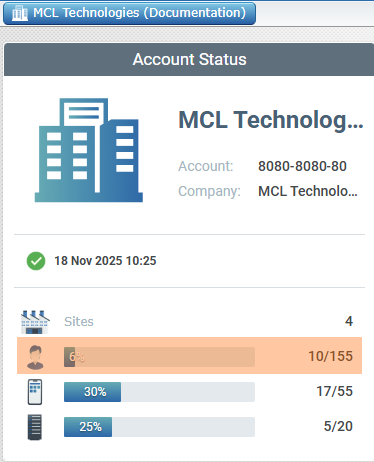
For more details on operator quota per subscription, go to the "Subscriptions" sub-module.
Step-by-step
1. Click  (in the "Control Panel" section) and, in the resulting row below, select
  to open the "Operators" page.
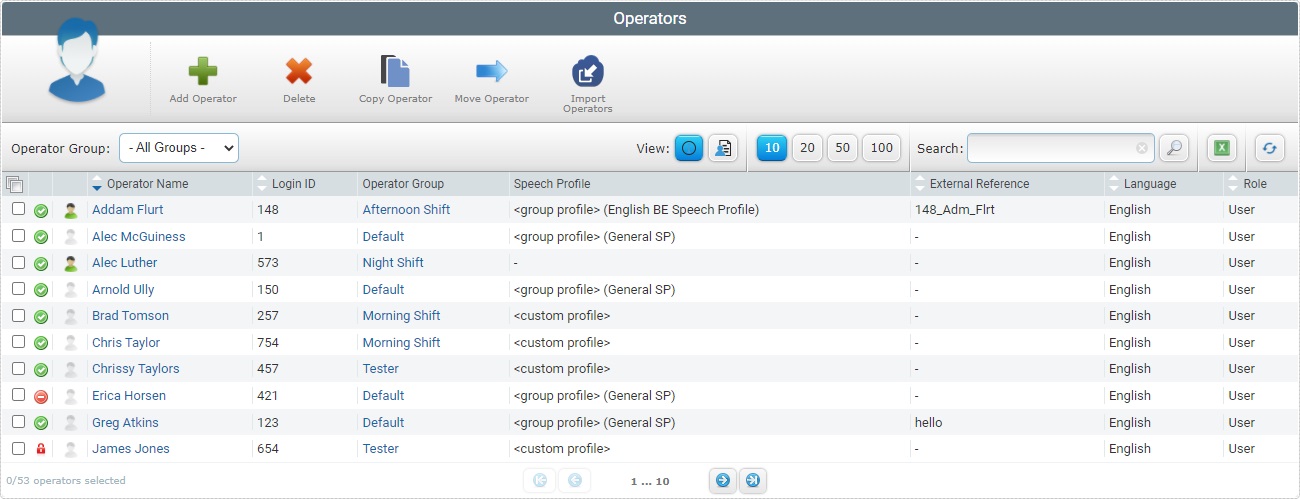
2. Click  to open the "Import New Operators step 1 ("Properties" tab)" wizard page.
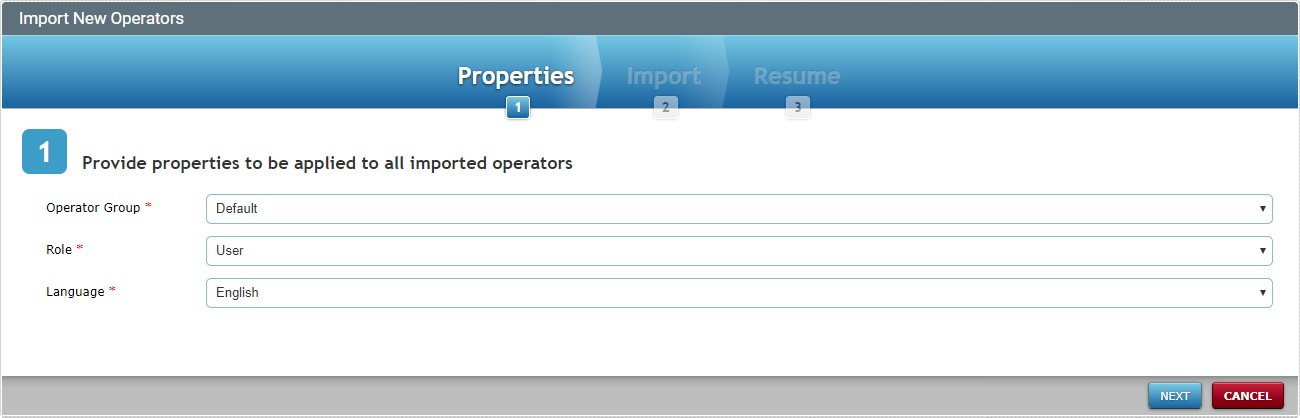
3. Define the properties to be applied to the imported operators by filling in the available options:
Operator Group * |
Select the compatible operator group that will include the imported operators from the drop-down (ex: speech operators must be included in speech operator groups). The selected operator group's values will be included in some of the options of the new operator's profile. You can, however, replace them with other parameters more suitable to this operator. |
Role * |
Select the role in the application for all imported operators from the drop-down. |
Language * |
Select the language to be used by the imported operators from the drop-down. |
4. Click  to proceed to the step 2 ("Import" tab) wizard page.
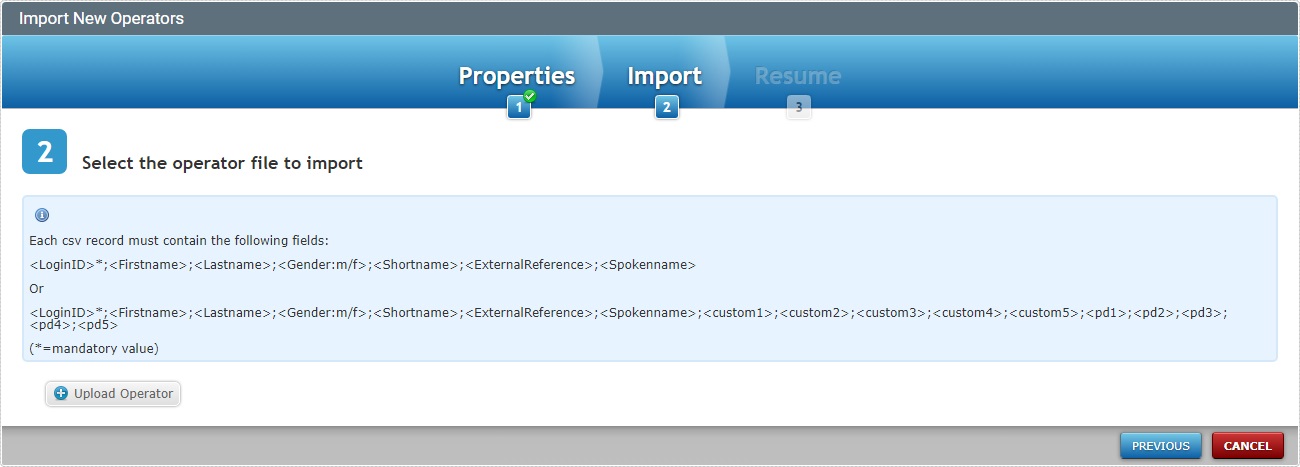
5. Read the CSV structure related information and confirm your file complies with it/contains the referred record fields to avoid any import issues.
CSV file for Operator Imports:
Fields marked with * are mandatory, meaning, they must contain information.
If using the more complete CSV structure, make sure to include the following field and keep it empty - "...;<ExternalReference>;;<custom1>;<..."
To return to the step 1 ("Properties" tab) wizard page, click  .
.
6. Click  and open an OS browse window.
If, for some reason, you close the OS browse window, you can reopen it with the use of the "Upload Operator CSV file" window (it opens at the same time as the OS browse window, in the background):
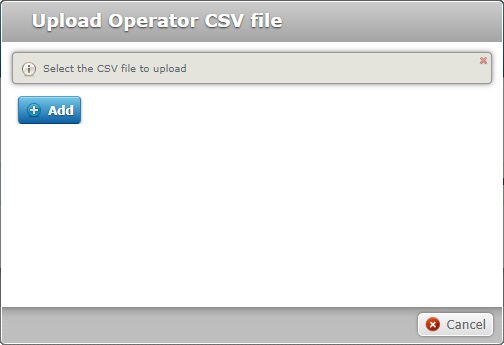
a. Click  to open the OS File Explorer again.
b. Proceed to step 7.
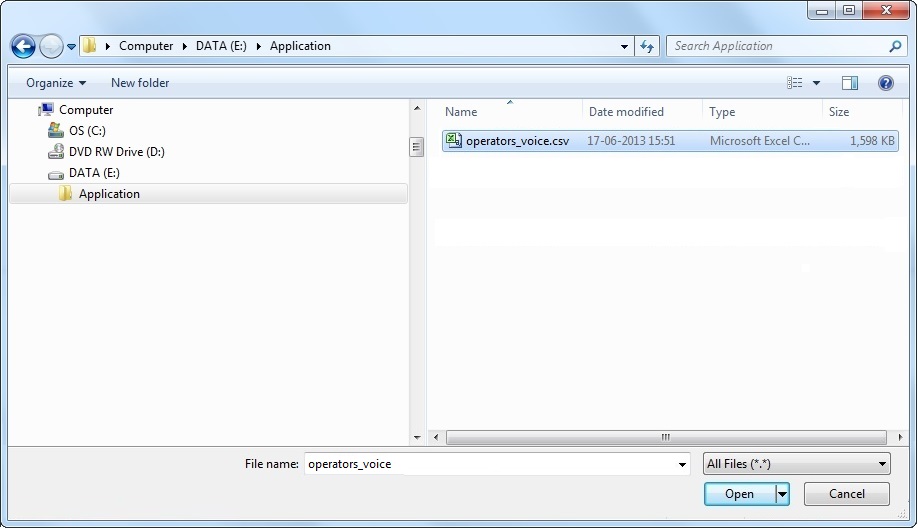
7. Select the appropriate file and click  .
.

Consider the information that was provided in the step 2 ("Import" tab) wizard page regarding the structure of the file to be selected:
Depending on the type of operator you intend to import, the file's records must contain the following fields:
For a speech operator file - <LoginID> (mandatory value);<Firstname>;<Lastname>;<Gender:m/f>;<Shortname>;<ExternalReference>
For a non-speech operator file - <LoginID> (mandatory value);<Firstname>;<Lastname>;<Gender:m/f>;<Shortname>;<ExternalReference>;;<custom1>;<custom2>;<custom3>;
<custom4>;<custom5>;<pd1>;<pd2>;<pd3>;<pd4>;<pd5>
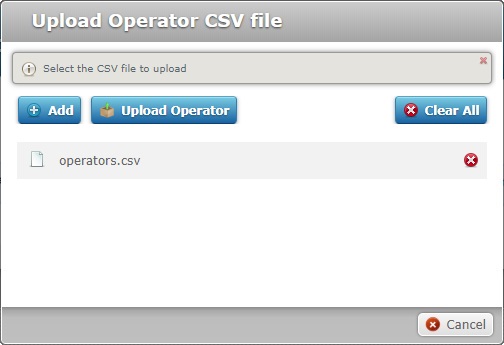
Files have to be added one by one. If you want to add more files, click and repeat step 7.
If necessary, you can delete added files. To delete one file, click the corresponding  . To delete all added files, at once, click
  .
.
The operators contained in the selected file/files per import operation cannot exceed the 10 000 limit.
8. Once you have all the required files displayed in the "Upload Operator CSV file" window, click  to upload the selected file(s).
If there are no errors in the operator import operation, the step 3 (Resume tab) wizard page will display a confirmation message.

If some or all the operators are not successfully imported into the site, the "Resume" tab will display a list with the operators that were NOT imported, as well as the reason for the failed import.
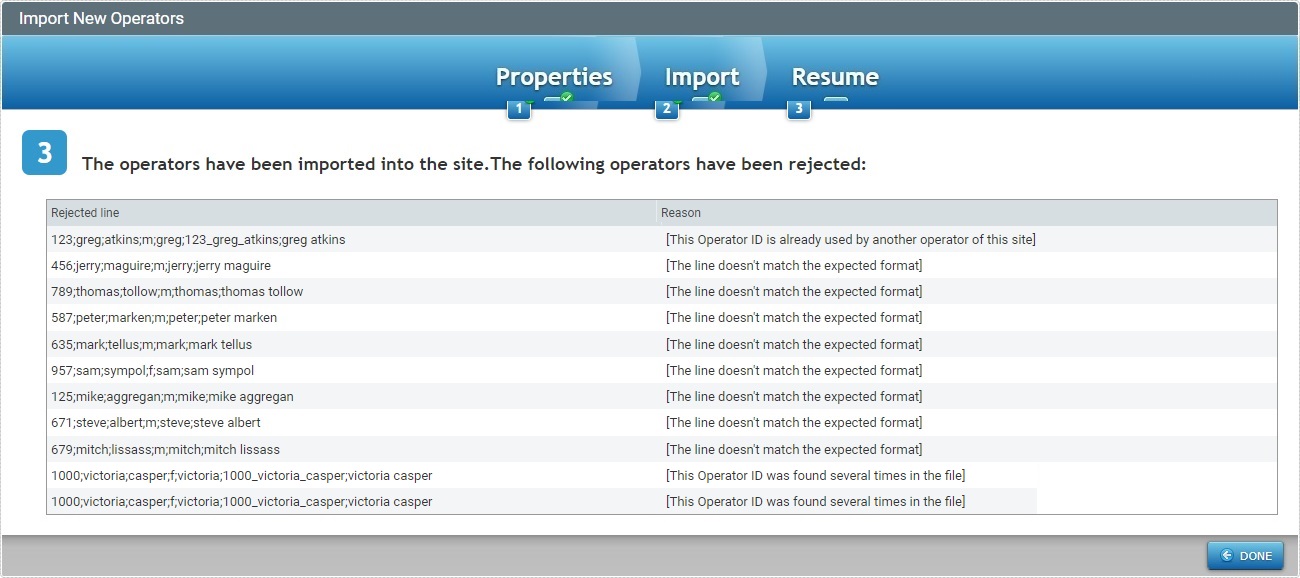
9. If you had failed operator imports, consider the information provided in the "Reason" column and execute the necessary changes before trying a new import.
10. Click  to conclude the import operation and return to the "Operators" page.
The newly imported operators are displayed and available in the "Operators" page.
Operator Import Rules
•There is a limit of 10 000 operators per Import operation.
•The <loginID> mandatory field of the ".csv" file for import MUST contain a numeric value with less than 6 numeric characters.
•The ".csv" file CANNOT include "loginID" duplicates, for instance, include a "login ID" that has already been attributed to an operator contained in the current site - the duplicate operators will NOT be imported.
•If, for some reason, the <Gender:m/f> field is empty, the value "f" will be attributed to that empty field.