How to Activate a Product License in a Device |
  
|
How to Activate a Product License in a Device |
|
Overview
Use MCL-Loader V4 to activate MCL product licenses (ex: the MCL-Client license package(s) you have purchased).
This chapter focuses on the activation of the license units included in registered MCL-Client license packages. This means that the connected device will be associated to that product license.
Do NOT forget that each MCL-Client license package includes a limited amount of available license units (one license unit per device) which cannot be exceeded (ex: If you purchase an MCL-Client license package with 5 units, you can only associate that license to 5 devices).
If required, you can use an Add-on to extend MCL Support Service.
The association of add-ons to registered MCL licenses is performed in MCL-License Manager. Refer to the MCL-License Manager User Guide for more details on this operation.

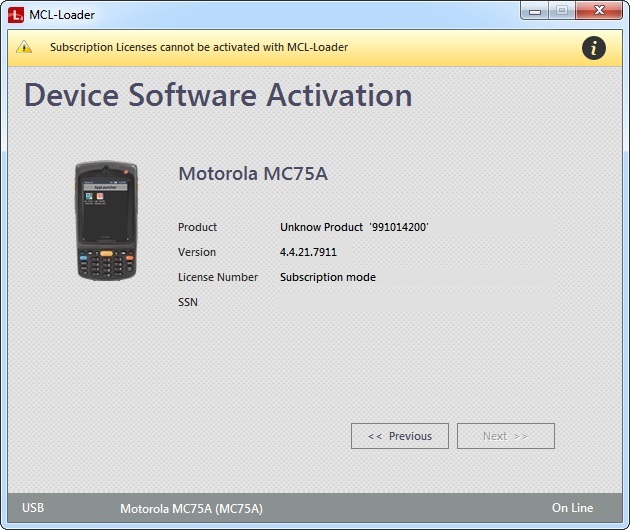
If you have installed MCL-Agent into your device, that means that you have acquired a Subscription (type of license). Subscriptions are NOT activated with MCL-Loader V4. Its activation relates to MCL-Mobility Platform. For more information on Subscription activation to MCL-Mobility Platform V1.4 User Guide.

Before attempting to activate a license unit in a device, make sure that the devices being used have the corresponding MCL-Client installed. See How to Install Software in a Device.
Prior to the MCL-Client license package activation, access MCL-License Manager and register the license package in your account. See How to Register a License.
Make sure that your device is connected to the PC where MCL-Loader V4 is installed (via USB for Windows Mobile/Windows CE devices or via Wifi for Windows Mobile/Windows CE and Android devices) and that the PC is connected to the Internet so you can contact your MCL-License Manager account.
As an alternative to MCL-Client activation in a device via MCL-Loader, you can also activate a license unit using your MCL-License Manager account. You can install the configuration file it provides into your device(s) OR you can read the corresponding generated QR code with your device(s).
Refer to the MCL-License Manager User Guide for more details on this type of MCL-Client License Activation.
Step-by-step
1. Open MCL-Loader V4.
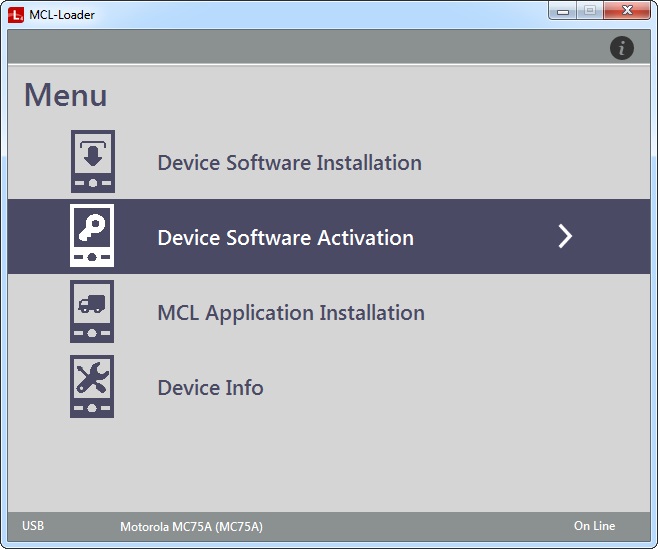
2. Click the  "Device Software Activation" option.
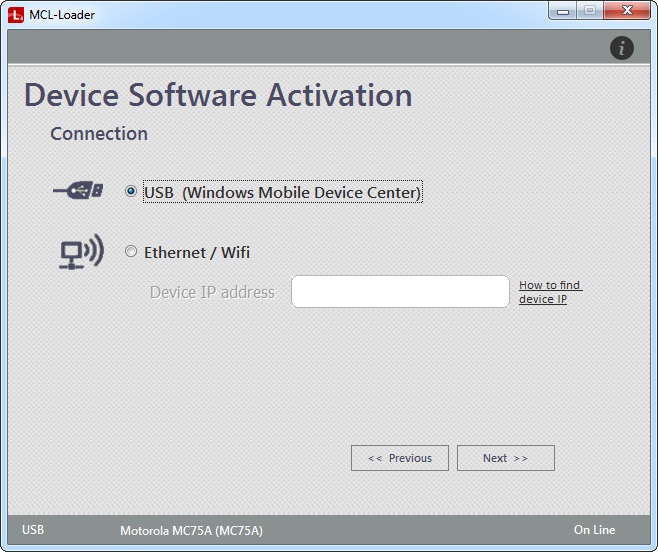
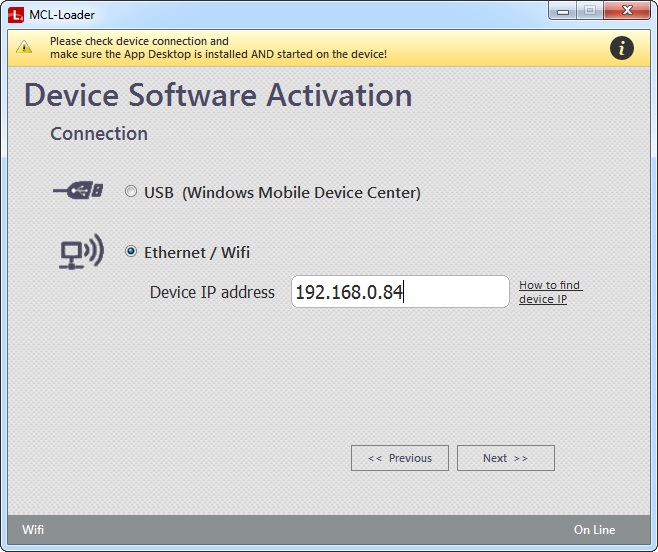
3. Select the type of connection you want to establish by checking the corresponding option:
USB (Windows Mobile Device Center) |
Check this option if you intend to use a USB connection between MCL-Loader V4 and your device, and follow the steps described in Via USB Connection.
If your computer does NOT have Windows Mobile Device Center installed, this option will be greyed out.
|
Ethernet/Wifi |
Check this option if you intend to use a Wifi connection between MCL-Loader V4 and your device, and follow the steps described in Via Ethernet/Wifi Connection.
If your target device is an Android device, this is the ONLY connection you can use.
|
Possible Status/Error Messages
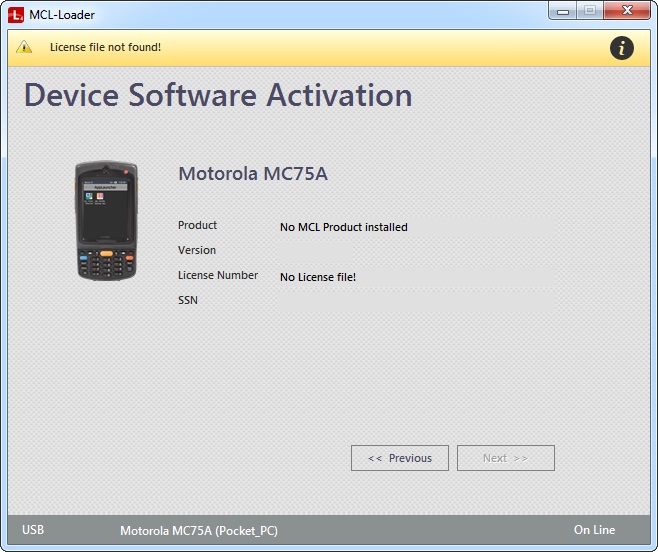
No MCL Product Installed |
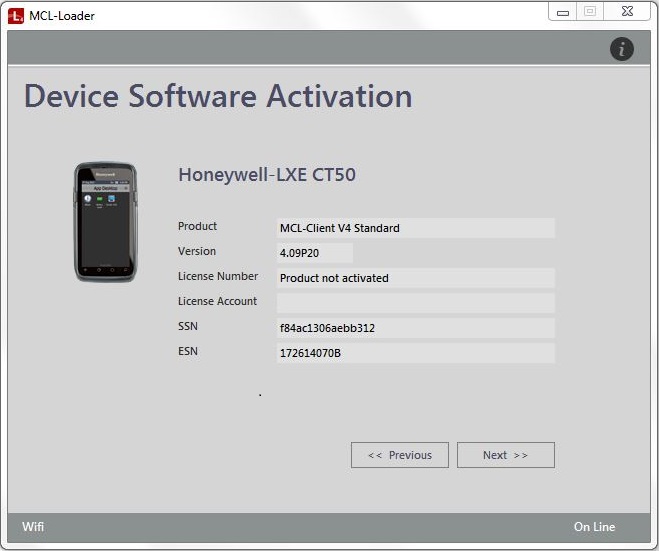
Product Not Activated |
Susbcription Mode |
|
|
|
The connected device has NO MCL product installed (ex: MCL-Client). It is NOT ready for product license activation. |
The MCL product (ex: MCL-Client V4 Standard) is installed in the connected device and ready to have the corresponding product license activated. |
MCL-Agent is installed in the connected device, however, this MCL product is associated to a subscription license type and, therefore, to MCL-Mobility Platform. It is NOT possible to activate this license type with MCL-Loader V4. |
a. Install the MCL software (ex: MCL-Client).See How to Install MCL Software in a Device.
b. Acquire and register an MCL product license package. See How to Register a License.
c. Activate the registered MCL license package. See How to Activate a Product License in a Device. |
Activate the MCL product's license package. Depending on the selected type of connection, see:
|
Perform one of the following procedures: a. Make sure you have acquired an MCL-Client license package. b. Uninstall MCL-Agent from the device and install MCL-Client. c. Retry the license activation. OR a. Use another device. This device can only be used within your MCL-Mobility Platform account. |
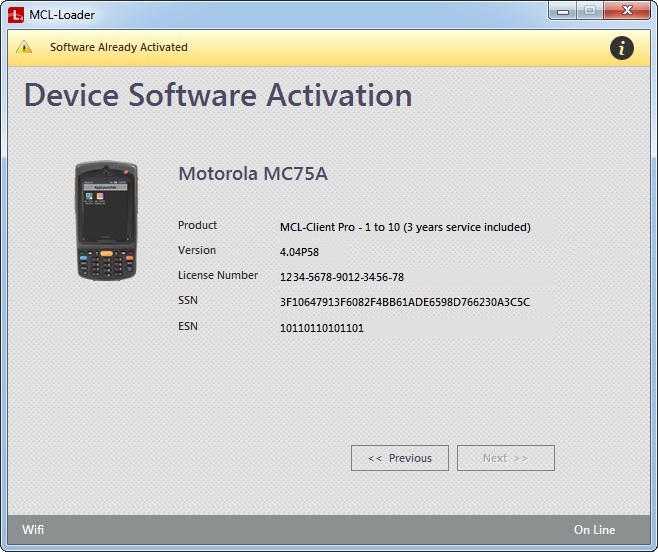
Software Already Activated |
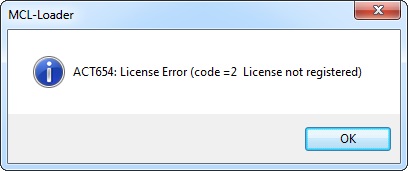
License Not Registered |
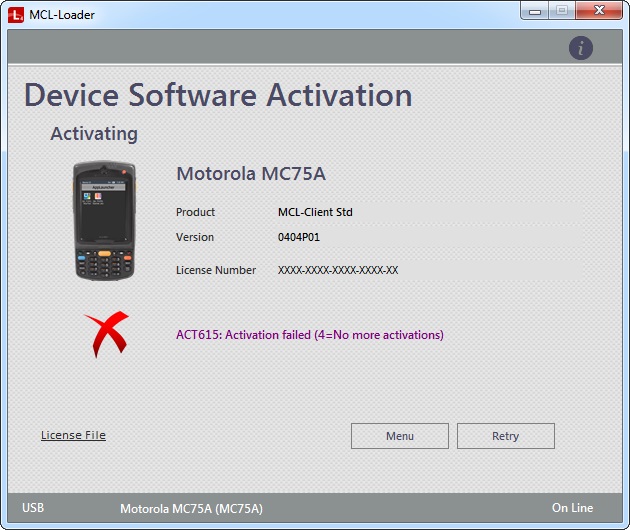
No More Activations Available |
|
|
|
The MCL product is already installed and the corresponding license has been activated in this device. |
The product license you are trying to activate has NOT been registered in your MCL-License Manager account. |
There are no more available license units in your product license package. You have reached the number of devices that can be associated to this license package. |
No further action is needed. Click |
Register your product license package in your MCL-License Manager account. See How to Register a License. Click |
Acquire and register a new product license package and retry the product license activation. See How to Register a License. |
Please check device connection and... |
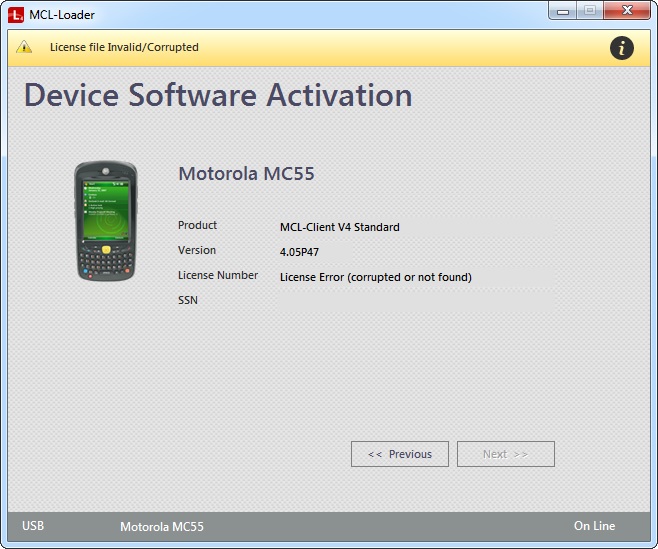
License file Invalid/Corrupted |
|
|
|
|
The currently connected device may have Wifi problems OR it may NOT have App Desktop installed and running. |
There is a problem with the downloaded license file. |
|
a. Verify the device's Wifi connection. b. Check if the device has App Desktop installed. App Desktop is included in the MCL-Client/MCL-Agent download and installed at the same time. If the device does NOT include App Desktop, you have to uninstall/install MCL-Client/MCL-Agent again (the product being reinstalled depends on the type of license being used – perpetual license or subscription). c. Launch App Desktop. d. In MCL-Loader, repeat the procedure (enter the device's IP and click |
a. Repeat the "Install MCL Software" procedure and check your device's screen for possible needed actions. |
|