|
Report Details |
  
|
Report Details
|
Report Details |
|
Overview
A Report provides information on a variety of MCL-Mobility Platform entities - devices, sites, operator groups, device groups, etc.
Each report is based on a report template and returns entity-specific data.
You can open a page that displays the report's returned information - a report view page - and you can open the report's details page to edit its settings.
See Report View Page and Report Details Page.
Report View Page
Access: Open the "Report Management" page (Admin Dashboard > Control Panel > Business Analytics module > Reporting sub-module > Report Management page) and click the intended report.
This page is divided into a Data section, which displays the report's returned data and a "Parameters" panel (hidden by default, to the left, that can be expanded to check/edit the parameters set for this report).
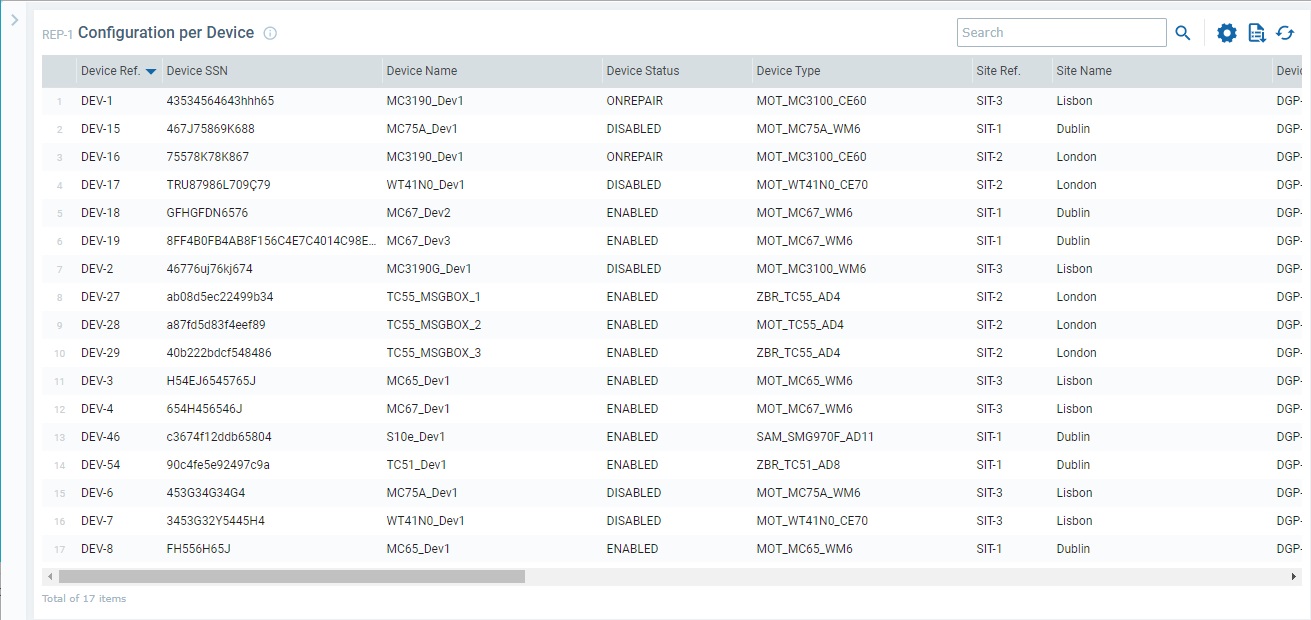
Example of the report view page of a report:
This section provides the data returned by the selected report. Its display is aggregated/filtered according to the parameters set in the "Parameters" panel.
The returned information is defined by the report template that this report was based on.

•Use the search box to look for a specific item/element.
• Opens a pop-up window where you can define which columns should be displayed in the table listing the reports.
The listed columns depend on the report type/data it is meant to return.
Click  again to hide the list.
• Downloads a list with the reports.
The report list is downloaded in an Excel file format. ("MP_<report name>_<time stamp>.report.csv" file - ex. "MP_Devicelist config v1_211210112045.report.csv".)
 Since the export ONLY includes the information displayed in the Data section, make sure that this section contains the intended columns and check the parameters set in the "Parameters" panel before doing a report export because they can filter the data display.
• Refreshes the information on the current page.
This panel is hidden by default - click  (upper left corner) to expand it.

This panel includes the parameters that are compatible with the current report.
Example of a report's Report View page with an expanded "Parameters" panel.
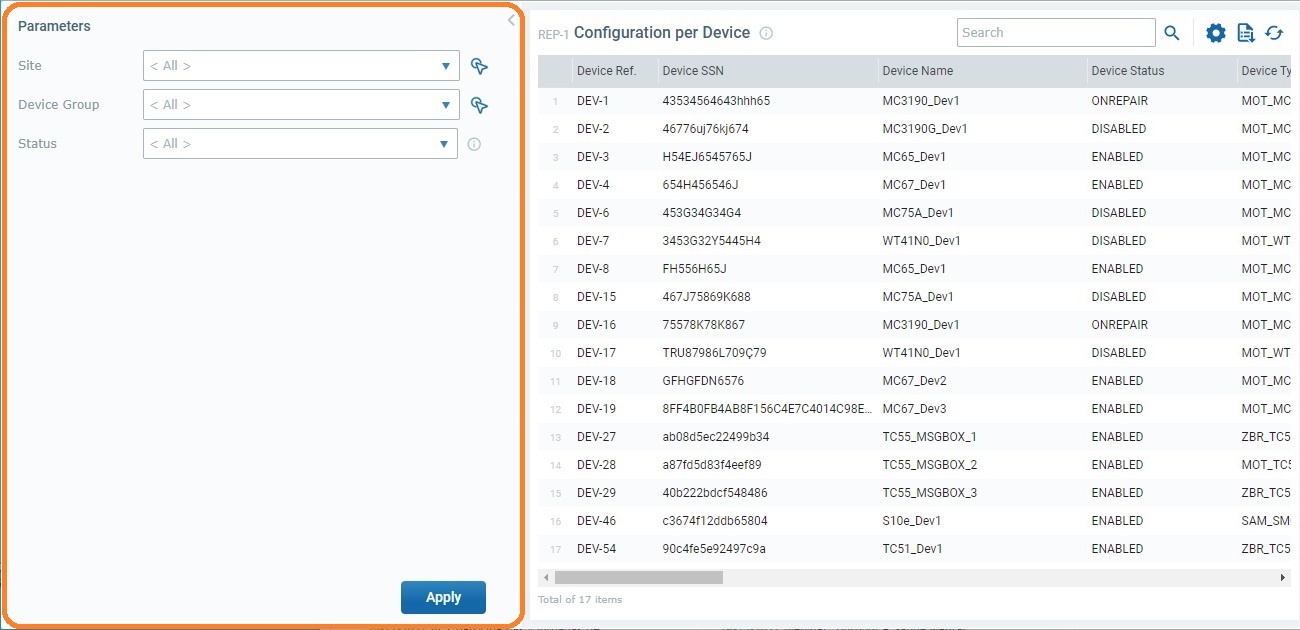
Since this report is based on the report template "Device List - Config", it is possible to define a specific site, device group and/or device status to restrict the returned device related information. In this case, there are no specific values defined for this report's parameters - the displayed list includes all the devices paired to the account.
The parameter values, can be, temporarily, edited in this report view. Use the drop-down or the  button (when available) to select another listed value.
 This parameter edition is NOT permanent. It ONLY lasts while this page is open. To apply a permanent change, access the report's details page and save your edition there.
Mouse over the  on the right of the status field to see details on the field. This info is from the chosen template.

This page is where you define/edit the report's settings.
Access: Open the "Report Management" page (Admin Dashboard > Control Panel > Business Analytics module > Reporting sub-module > Report Management page), select the intended report and click  . This opens the selected report's details page.
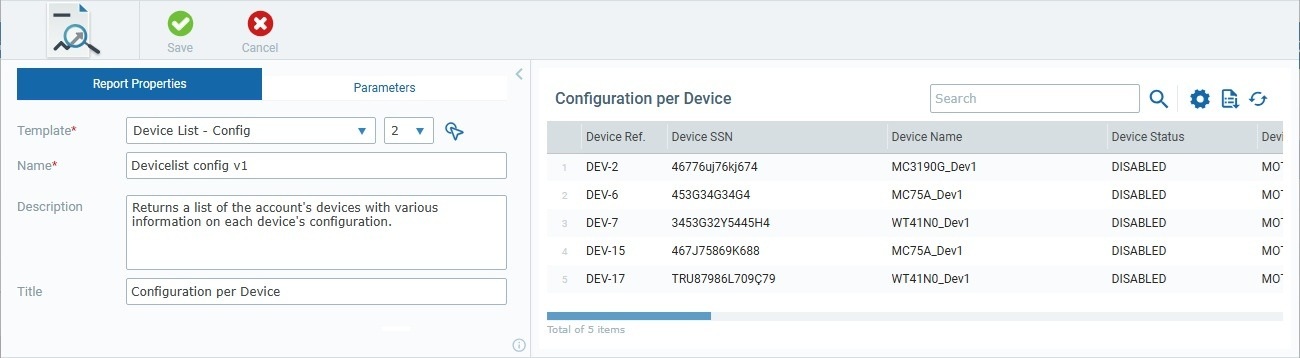
This page is divided into a tab section that includes the "Report Properties" and "Parameters" tabs and a "Data" section.
It opens already set to edit mode to allow you to change its properties and/or parameter values.
You must save your changes to permanently apply them to the report.
The "Report Properties" tab allows you to:
•choose the report template (and version) that will be the basis for your report;
•define a name for the report and a report title to be displayed in the "Data" section;
•enter a description for the report.
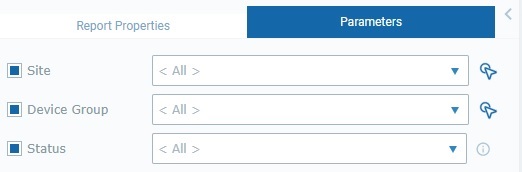
This tab includes the parameters compatible with the report template you have chosen.
For instance, if the report template is meant to return device data, this tab is likely to provide the "Site", "Device Group" and "Status" parameters.
If you set values for those parameters, it will filter the report's returned data.
For more detailed information on the editing of these tabs, see Editing a Report.
"Data" section
This section, located to the right of the page, displays the data returned by the current report.
You can control the columns to display, refresh and export the report's displayed data.
See Available Options/Buttons below for more details.
•Use the and  arrows (top of the page) to expand and collapse the tabs section.
• Use the search box to look for specific listed elements.
•Opens a pop-up window where you can define which columns should be displayed in the table listing the reports.
The listed columns depend on the report type/data it is meant to return.
Click again to hide the list.
•Downloads a list with the reports.
The report list is downloaded in an Excel file format. ("MP_<report name>_<time stamp>.report.csv" file - ex. "MP_Devicelist config v1_211210112045.report.csv".)
Since the export ONLY includes the information displayed in the Data section, make sure that this section contains the intended columns and check the parameters set in the "Parameters" panel before doing a report export because they can filter the data display.
• Refreshes the information on the current page.