|
Development Station Details |
  
|
Development Station Details
|
Development Station Details |
|
Overview
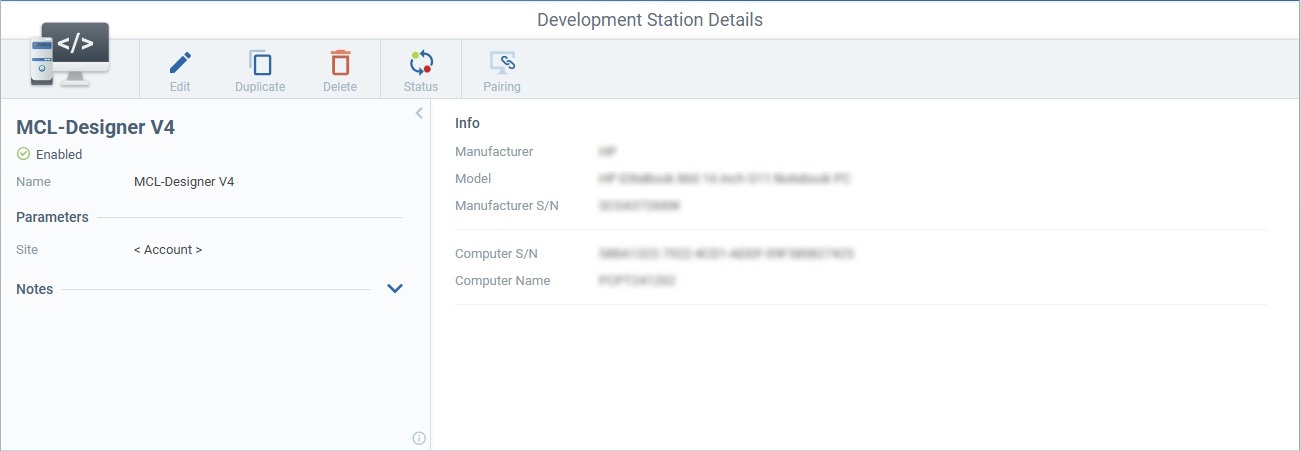
The "Development Station Details" page displays the status of the selected development station and information on the associated MCL-Designer instance, specifically, information on the computer it is installed in.
Details Page
Access: Admin Dashboard > Control Panel > External Systems module > Development Stations sub-module > Development Station Management page > < select development station > > Development Station Details page
Example of the details page of a development station named "MCL-Designer V4":
Information on the computer where the MCL-Designer application is installed: |
|
Manufacturer |
Computer's manufacturer. |
Model |
Computer's model. |
Manufacturer S/N |
Manufacturer serial number attributed to this computer. |
Computer S/N |
Computer's serial number. |
Computer Name |
Computer's name. |
Information on the current development station: |
|
<Name> |
Development station's name. |
<Status> |
Development station's current status. |
Name |
Development station's name. |
Parameters |
|
Site |
The account or site the development station is associated to. |
Notes |
|
<notes> |
Relevant information regarding the development station. The information is displayed in the "Notes" field/ column of the "Development Stations Management" page. |
Header Buttons
 Sets the current details page to edit mode. See Editing a Development Station.
 Duplicates this development station. See Duplicating a Development Station.
 Deletes this development station. See Deleting a Development Station.
 Changes the current status of this development station. See Changing a Development Station's Status.
 Generates a Pairing Key in file format (an "*.mcfg" file) for the pairing of the current development station.
When a development station is created/added in the MCL-Mobility Platform, a pairing key is, automatically, generated and it is used to pair an MCL-Designer V4 instance in a PC to that development station in the MCL-Mobility Platform. That pairing key is provided by the MCL-Mobility Platform in a file format.
Click Save/place the "DesReg_<account number>_<site reference>_<development station name>.mcfg" file (ex: DesReg_6116120049_SIT-3_Dev_Station_Lisbon.mcfg) in MCL-Designer's installation folder.
Refer to the MCL-Designer V4 User Guide for information on the subscription activation steps to be executed on MCL-Designer. |